)
Inside Zerve's AI Agent: Visibility and Control at Every Step

TL;DR
Zerve's AI agent shows you the plan before execution, explains its reasoning as it writes code, and tracks progress in real time. Here's how each layer of visibility works.
Zerve's AI agent shows you the plan before execution, explains its reasoning as it writes code, and tracks progress in real time. Here's how each layer of visibility works.
Plan Approval Before Execution
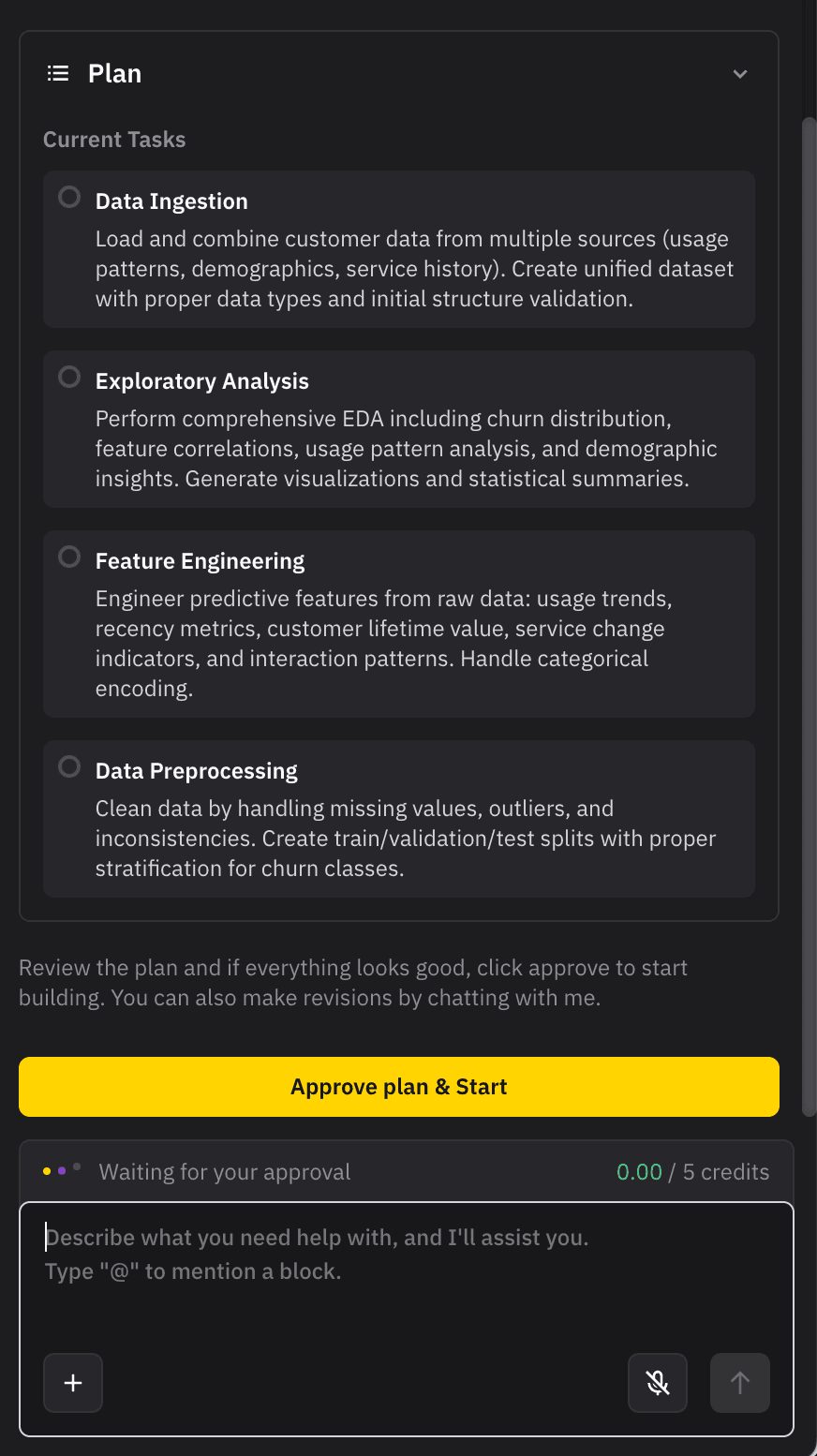
The agent generates a plan, then stops. You see the full workflow before any code runs: data generation, exploratory analysis, model training, evaluation. Click to approve and proceed, or reject and revise.
This gate lets you steer the agent by controlling what tasks it handles. If the plan misses something or takes the wrong approach, you catch it before execution wastes time and credits.
Reasoning Messages Alongside Code
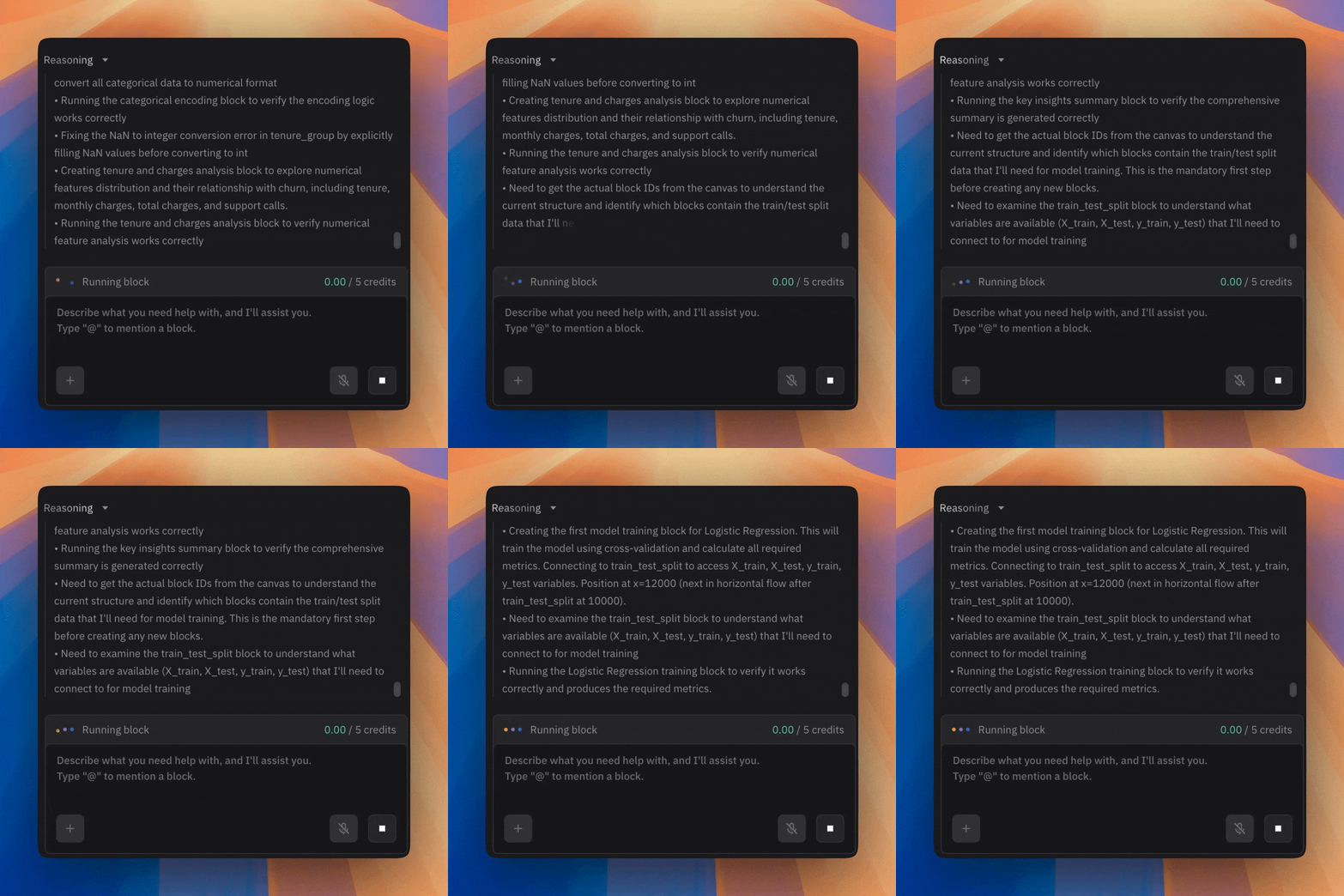
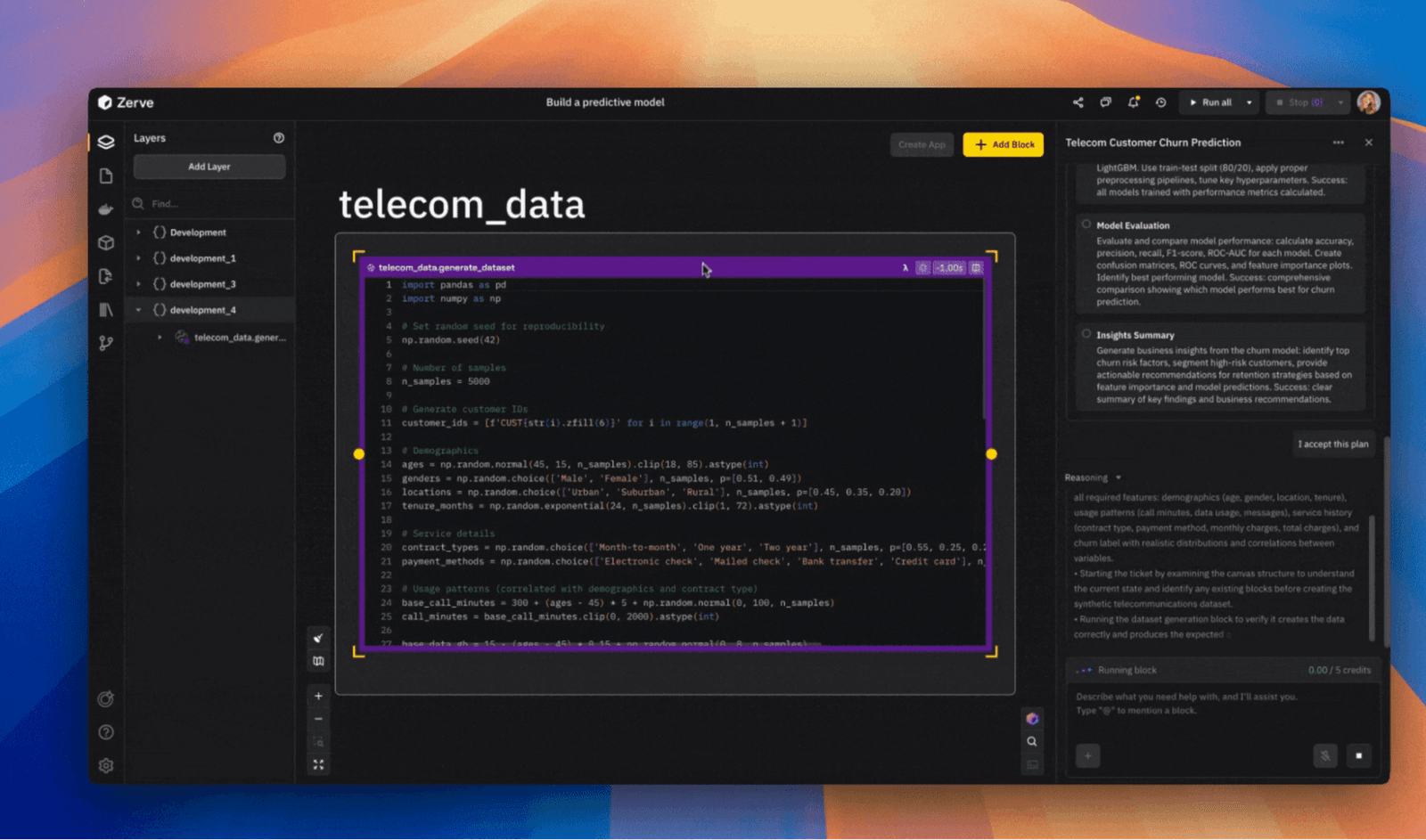
As the agent creates each code block, the chat shows a reasoning message explaining why it's creating the block and what result it expects. The reasoning appears right next to the code block on the canvas.
You can read the explanation and verify the code matches the intent. If the agent's logic is wrong, you see it immediately.
Step-by-Step Progress Indicators
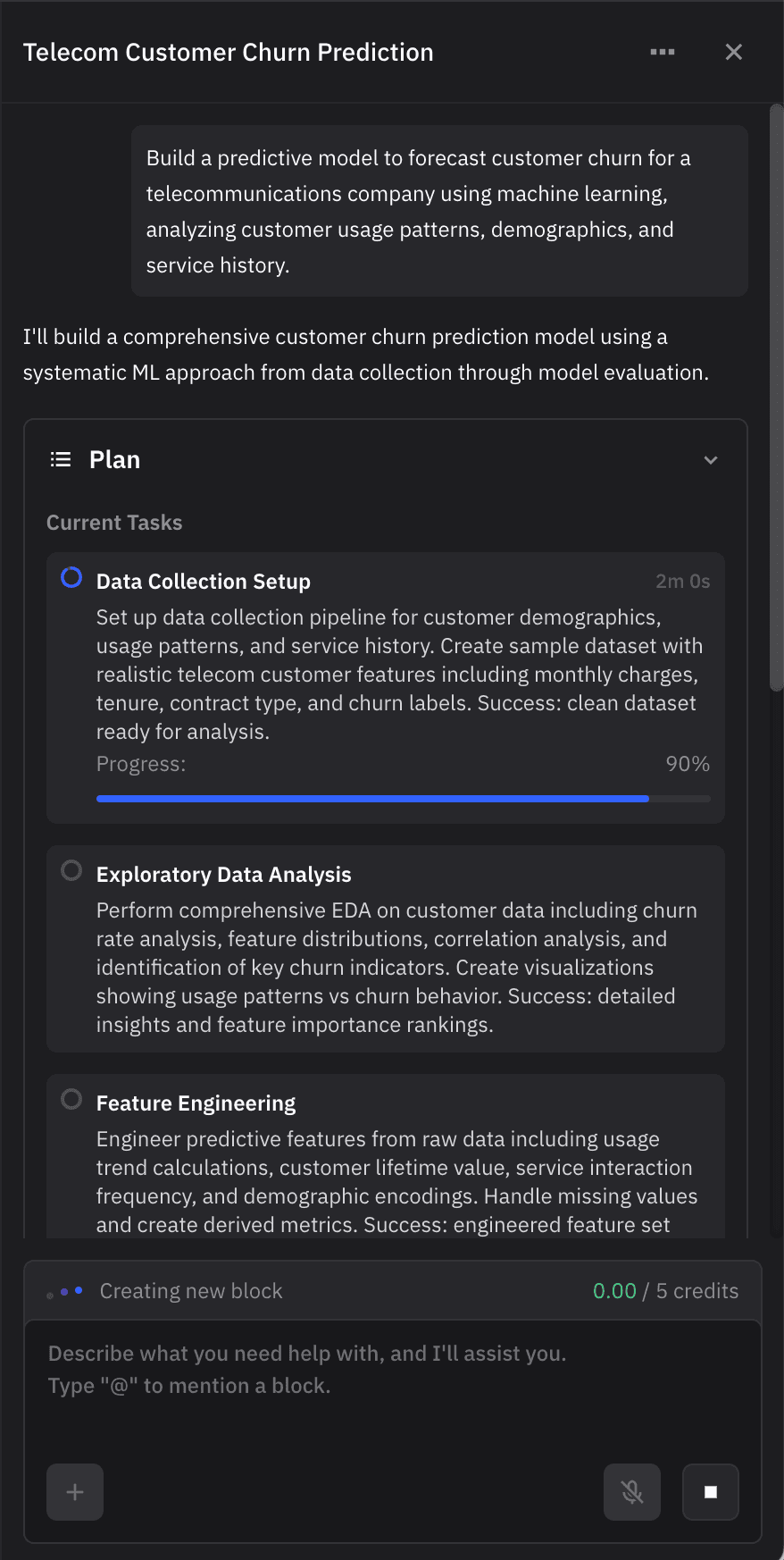
Each step in the approved plan displays a live progress indicator during execution. When the agent is generating data, that step shows active. When it moves to EDA, that step shows active. You know which task is running and how many remain.
For long operations like model training or hyperparameter tuning, you can see execution hasn't stalled.
Automatic Block Creation on the Canvas
Once you approve the plan, the agent adds new blocks to the canvas automatically. Data generation block. EDA block. Preprocessing block. Model training block. The workflow assembles itself without manual block creation or code copying.
Post-Execution Summary with Metrics
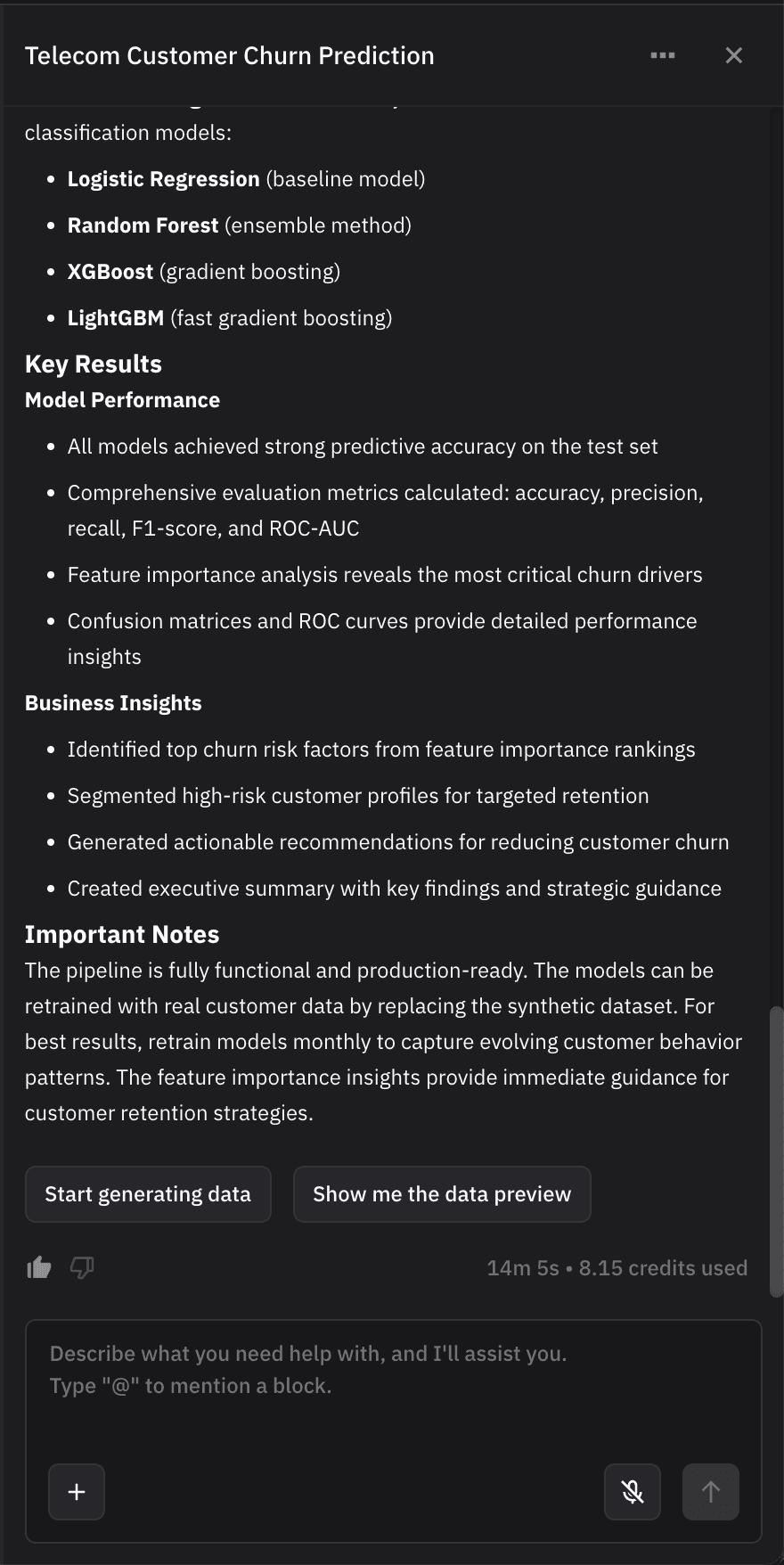
After all steps complete, the agent generates a summary with model results, performance metrics, key insights, technical notes, and session metrics like execution time and credits used. You get documentation you can reference later without reconstructing the workflow.
Get Started With Zerve For Free
Want to see how it works with your own data? Start a free Zerve account and get building.
FAQs
The agent generates a plan, then stops. You see the full workflow before any code runs: data generation, exploratory analysis, model training, evaluation. Click to approve and proceed, or reject and revise. If the plan misses something or takes the wrong approach, you catch it before execution wastes time and credits.
As the agent creates each code block, the chat shows a reasoning message explaining why it's creating the block and what result it expects. The reasoning appears right next to the code block on the canvas. You can read the explanation and verify the code matches the intent. If the agent's logic is wrong, you see it immediately.
Each step in the approved plan displays a live progress indicator during execution. When the agent is generating data, that step shows active. When it moves to EDA, that step shows active. You know which task is running and how many remain. For long operations like model training or hyperparameter tuning, you can see execution hasn't stalled.
No. Once you approve the plan, the agent adds new blocks to the canvas automatically. Data generation block. EDA block. Preprocessing block. Model training block. The workflow assembles itself without manual block creation or code copying. All blocks stay on the canvas for you to reference, modify, or reuse later.
The agent generates a summary with model results, performance metrics, key insights, technical notes, and session metrics like execution time and credits used. You get documentation you can reference later without reconstructing the workflow.